Notifu, a free open source pop-up balloon utility
Notifu is a tool that displays a yellow pop-up balloon in the system notification area, better known as the tray. It is free and open source, give it a try!
Notifu uses the same API that Windows uses to show pop-up ballons. You see them when you add a device, such as a wireless network or a USB drive, or when certain system events occur, say, every second tuesday of the month…
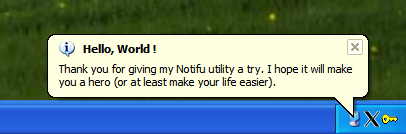
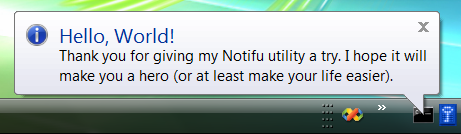
I created this utility to put in my scripts, as it allows to show status messages using a less intrusive (non-blocking) way. It also allows for some user interaction if the user clics on the balloon.
Features
Notifu can do most of the tricks Windows allows, like :
- Show your prompt and message
- Show a information, warning or error icon
- Timeout after a period of time.
- Use a custom icon
- Detect what happened whith the balloon (via ERRORLEVEL)
Download
Click here to download the latest compiled version.
Basic usage
Notifu displays a message. So in it’s simplest form, the message is the only required arguments. Use the /m switch
notifu /m "This is a simple Notifu message."
You will notice that by default, Notifu uses the icon of its parent process. We will get to that later.
You can combine any other command line switch along with /m. But for clarity, they are prensented separatly here. Go to “example usage” section below to see Notifu in action.
Prompt
| Switch | Description |
/p |
Most users will want their own prompt (or title, the line first, bold line of the pop-up). Use the /p switch |
notifu /m "This is a simple Notifu message." /p "Simple prompt"
Delay
| Switch | Description |
/d |
You probably don’t want it to stay up there forever. Use the /d switch (the delay is in milliseconds, with a 250ms resolution). |
notifu /m "This is a simple Notifu message." /d 3000
Just remember that you are not alone deciding how long your message stays up. Modern Windows version will dismiss the pop-up before the timeout expires.
Windows will wait for the user to notice it. It knows a user is there when the mouse moves (or any activity that would prevent a screen saver, like hitting the “shift” key). So you should look a /d as an upper limit on how long you want the balloon to stay up. Windows can shorten that. I see a 10 seconds limit on both Windows XP SP2 and Vista Business SP1. I heard of a user who had 3 second delay.
If you find a way to control that, please let me know !
Type
| Switch | Description |
/t (info|warn|error) |
If your message is important, you can change the icon Windows will use insidethe balloon with the /t switch, followed by info, warn or error. |
notifu /m "This is a simple Notifu message." /t warn
Icon
| Switch | Description |
/i [path to icon] |
If you script launches from a cmd.exe process or some batch program, you might want to use a different icon in the system notification area. The /i switch tries it’s best to extract an icon from the path you give it. It supports using environment variables and an icon number. |
notifu /m "This is a simple Notifu message." /i %SYSTEMROOT%\system32\shell32.dll,43
Examples
Notifu handles many instances of itself. When an instance sees a new instance comming up, it dismisses itself to make way for the new one. This behavior allows you to put notifu messages in your scripts and not have to worry about confusing the user. It uses terminal services aware semaphores to achieve this.
@echo off
rem ----------------------------------------------------------------
rem This batch file show how to use notifu in a long running script.
rem I doubt it is usefull for anything else.
rem ----------------------------------------------------------------
rem Notify the user that we are doing something that will take a while
rem (This next line should be on a single line in a batch file)
start "" notifu /p "Please wait..." /m "Checking disk integrity. It might take a while." /t warn /i %SYSTEMROOT%\system32\shell32.dll,79
rem This next line is the actual long running task
chkdsk c: /I /C
rem Here we use the start command so we don't have to wait for Notifu to exit
start "" notifu /p "Finished!" /m "Done checking the drive for errors."
You also might want to interact with the user using these pop-ups. Notifu returns a different errorlevel depending on what happened.
| ERRORLEVEL | Event |
| 0 | Registry was succesfully edited. Only returned when /e is used with no other argument. |
| 1 | There was an error in one the argument or some required argument was missing. |
| 2 | The balloon timed out waiting. The user didn’t click the close button or the balloon itself. |
| 3 | The user clicked the balloon. |
| 4 | The user closed the balloon using the X in the top right corner. |
| 5 | IUserNotification class object or interface is not supported on this version of Windows. |
| 6 | The user clicked with the right mouse button on the icon, in the system notification area (Vista and later) |
| 7 | The user clicked with the left mouse button on the icon, in the system notification area (Vista and later) |
| 8 | A new instance of Notifu dismissed a running instace |
| 255 | There was some unexpected error. |
Those result codes can be usefull to give the user more information on a specific action that is going on, by sending them to an intranet web page, for example.
@echo off
rem (Do something usefull here)
notifu /m "Click the balloon to know more about what is going on." /d 5000 if NOT ERRORLEVEL 3 goto:eof
start "" "http://www.paralint.com/projects/notifu/"
Special switches
There are a few special switches that could be helpful. There is a registry setting that controls whether or not pop-up balloons will show in the system notification area. The /e switch will change (or add) the registry to enable pop-up balloons.
The registry setting is at HKCU\Software\Microsoft\Windows\CurrentVersion\Explorer\Advanced. It’s a DWORD value named EnableBalloonTips. You can specify the /e along with other switches, but it looks like the registry is somehow cached for every program run, so if the /e changed anything, it will only be taken into consideration the next time you run Notifu.
notifu /e
There are also the classic /? that will show an help and the /v that will show the version you are using.
Usage: notifu [@argfile] [/?|h|help] [/v|version] [/t <value>] [/d ] [/p ]... [/m ]... [/i ] [/e] [/q] [/w] [/xp] [/c] [/k] [/l]

@argfile	Read arguments from a file.
/?		Show usage.
/v		Show version.
/t <value>	The type of message to display values are:
		   info         The message is an informational message
		   warn         The message is an warning message
		   error        The message is an error message
/d <value>	The number of milliseconds to display (omit or 0 for infinit)
/p <value>	The title (or prompt) of the ballon
/m <value>	The message text
/i <value>	Specify an icon to use ('parent' uses the icon of the parent process)
/e		Enable ballon tips in the registry (for this user only)
/q		Do not play a sound when the tooltip is displayed
/w		Show the tooltip even if the user is in the quiet period that follows his very first login (Windows 7 and up)
/xp		Force WindowsXP ballon tips behavior
/c		Constant (persistent) instance, will not be dismissed by new instances
/k		Removes every instance of Notifu, even the ones who are waiting to be displayed
/l		Diplay the license (BSD-3-Clause)
Debugging
I don’t control much of what is going on. I really just call Windows IUserNotification and hope for the best. If something does not work as expected, you can enable a trace.
Here is what you do :
- Download, unzip and run Microsoft’s DebugView (of SysInternal fame)
- From the Options menu, uncheck “Force carriage return”
-
Add the following line to the registry
[HKEY_CURRENT_USER\SOFTWARE\Paralint.com\Notifu\Debug] "Level"="Error" "Output"="OutputDebugString" - Reproduce the problem, bundle the trace with a description of the problem and send me an email.
If you don’t see anything, make sure you are running version 1.7.0 or later. To find the version number, run notifu.exe without any parameters.
Open Source
The source code for this project is hosted on Github. It is written in C++ and built with Visual C++.
You can read about the implementation, or find out for yourself by any of those means: